

The Logitech K250 is a compact Bluetooth keyboard with a number pad, deep-profile keys, spill resistance and a claimed battery life of up to 12 months on AAA batteries. It is meant for people who want a full set of number keys without a full-size footprint, and who would rather connect over Bluetooth than give up a USB port to a receiver. In short, it is a sensible, no-frills choice for home and office desks, but it is not a backlit, mechanical or multi-device keyboard.
This guide is based on Logitech’s official product pages and the Amazon.in listing data captured on 17 October 2026, not on hands-on testing. Where the listing and Logitech disagree, we say so.
The Amazon.in listing linked below is for the Graphite colour, with Logitech part number 920-013491 according to the listing. Check that the colour and part number match before ordering.
Short verdict
- Best for: laptop users who want a separate keyboard with a numpad, accounts and data-entry work, and small desks
- Skip if: you need backlit keys, a rechargeable battery, mechanical switches or quick switching between several devices
- Strengths: no dongle needed, numpad in a compact body, broad OS support, tilt legs, spill resistance tested to 60 ml, recycled plastic
- Limits: Bluetooth only (your computer must support it), membrane keys, no backlight, multi-device pairing not listed
Logitech K250 specifications
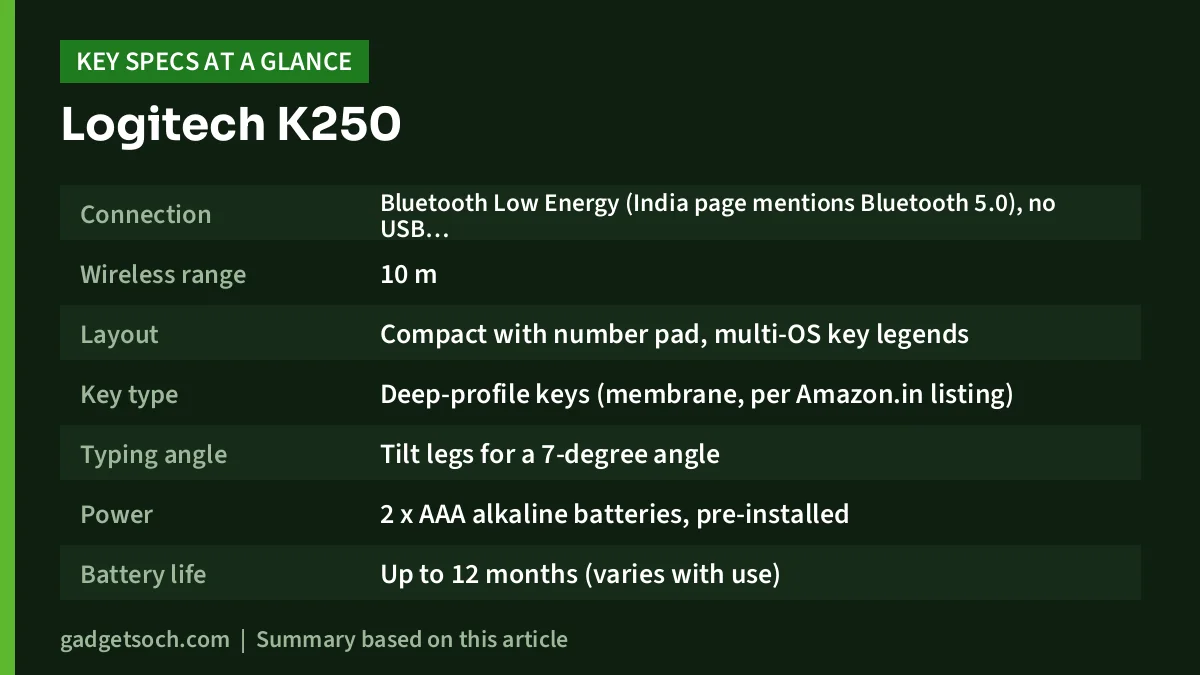
| Specification | Logitech K250 (Logitech official pages unless noted) |
|---|---|
| Connection | Bluetooth Low Energy (India page mentions Bluetooth 5.0), no USB receiver |
| Wireless range | 10 m |
| Layout | Compact with number pad, multi-OS key legends |
| Key type | Deep-profile keys (membrane, per Amazon.in listing) |
| Typing angle | Tilt legs for a 7-degree angle |
| Power | 2 x AAA alkaline batteries, pre-installed |
| Battery life | Up to 12 months (varies with use) |
| Controls | On/Off power buttons, connection LED |
| Spill resistance | Tested with up to 60 ml of liquid, not for immersion |
| Size | 369.9 mm wide, 136.9 mm high, 22.8 mm deep |
| Weight | 380 g |
| Materials | At least 64% post-consumer recycled plastic in plastic parts (excludes circuit board and packaging) |
| Supported systems | Windows 10, 11 or later, macOS 12 or later, ChromeOS, Linux, iPadOS 15+, iOS 15+, Android 12+ |
| Colour on this listing | Graphite |
| Warranty (per listing) | 1 year manufacturer warranty |
Check the current price of the Logitech K250 (Graphite) on Amazon.in
Layout: compact, but the numpad stays
Many compact keyboards save space by dropping the number pad. The K250 keeps it, along with arrow keys and F-key shortcuts mentioned in the Amazon.in listing. Logitech describes it as a compact design with all essential keys. Logitech lists a width of 369.9 mm, so measure your desk or keyboard tray before you buy.
This matters most if you type numbers often: GST invoices, Tally entries, Excel sheets, bank reconciliation or marks lists. A numpad lets you enter figures with one hand while keeping the other on the mouse. A slimmer body also places the mouse closer to your body, which many people find more comfortable on a small desk.
Logitech says the key legends are printed for multiple operating systems. That helps on a Mac, where Command and Option are used, but you should still expect slight differences in shortcut labels between Windows and macOS.
Typing feel
Logitech highlights deep-profile keys with fast, responsive action. The Amazon.in listing describes the keyboard as a membrane type. Membrane keyboards are generally quieter and lighter than mechanical ones, though feel varies from model to model. Since we have not typed on the K250, we cannot judge its key feel, so try one in a store if comfort is your top priority.
The keyboard has tilt legs that raise the back to a 7-degree angle, according to Logitech. Some people prefer a flatter board to keep their wrists neutral, while others like the tilt to see the keys better. Having the choice is useful.
Bluetooth connection and setup
The K250 connects over Bluetooth, so there is no USB receiver to plug in or lose. This is useful on thin laptops with only one or two USB ports, and on tablets and phones that have no USB-A port at all. Logitech lists a 10 m range. Logitech’s spec page says you start pairing by long-pressing the On/Off power buttons, and an LED shows connection status.
Typical pairing steps, once the keyboard is in pairing mode:
- Windows 11: Settings, then Bluetooth and devices, then Add device, then Bluetooth, and pick the keyboard
- macOS: System Settings, then Bluetooth, and click Connect next to the keyboard
- Android or iPad: open Bluetooth settings and tap the keyboard name when it appears
- If the computer asks you to type a code on the keyboard, type it and press Enter
One point to check: Logitech’s pages do not mention Easy-Switch or pairing with several devices at once. If you want one keyboard to jump between a laptop, tablet and phone with a button press, look for a model that lists multi-device support.
Also make sure your computer has Bluetooth. Most laptops have it built in, but some desktop PCs do not. If your desktop lacks Bluetooth, you will need a separate Bluetooth adapter, or a keyboard that ships with its own USB receiver.
Battery life and power
Logitech rates battery life at up to 12 months, and says it varies with use. The keyboard runs on two AAA alkaline batteries that come pre-installed, according to Logitech’s spec page. There is no rechargeable battery or charging cable, which some buyers prefer because a spare pair of AAA cells is easy to find in any shop.
To stretch battery life, switch the keyboard off with its power button when you leave it for long periods, and replace both batteries together. If you use rechargeable AAA cells, note that Logitech lists alkaline batteries in its specs.
Spill resistance and build
Logitech calls the K250 spill-resistant and explains that it was tested under limited conditions with up to 60 ml of liquid. It is not made to be submerged. In practice, this covers a small splash of tea or water, not a full mug. If a spill happens, switch the keyboard off, turn it upside down to drain, and let it dry fully before using it again.
The keyboard weighs 380 g, according to Logitech. For sustainability, Logitech states that the plastic parts use at least 64% post-consumer recycled plastic, a figure that excludes the circuit board and packaging.
Compatibility across devices
Logitech lists support for Windows 10, 11 or later, macOS 12 or later, ChromeOS, Linux, iPadOS 15 or later, iOS 15 or later and Android 12 or later. The Amazon.in listing title mentions Windows and macOS, and its technical details mention only Windows, but Logitech’s own list is wider. If you plan to use it with an older phone or Mac, check your OS version against this list first.
How to choose a Bluetooth keyboard for work
Before settling on any model, think about four things. First, connection: Bluetooth keeps ports free, while a USB receiver usually works on desktops without Bluetooth and in a PC’s BIOS screens. Second, layout: if you type numbers daily, keep a numpad. Third, power: AAA batteries are cheap and easy to replace, while a rechargeable battery needs a cable and charging habit. Fourth, extras: backlighting, multi-device switching and mechanical keys all add cost, so pay for them only if you will use them.
Care and cleaning
Switch the keyboard off before cleaning. Turn it upside down and tap gently to remove crumbs, then wipe the keys with a slightly damp, lint-free cloth. Avoid spraying liquid directly on the keyboard, since the spill rating covers accidents, not regular soaking. If the keyboard stops responding, try fresh batteries first, then remove it from your device’s Bluetooth list and pair it again.
Who should buy the Logitech K250

- Laptop users who want a separate, full-layout keyboard with a numpad for home or office work
- Accounts, billing and data-entry staff who type lots of numbers
- Anyone with few USB ports who prefers a dongle-free Bluetooth keyboard
- Tablet users who want a proper keyboard with a numpad
Who should look elsewhere
- People who work in dim rooms and need backlit keys
- Gamers or typists who prefer mechanical switches
- Users who want to switch quickly between several paired devices
- Desktop PC owners without Bluetooth who do not want to buy an adapter
Alternatives worth comparing
These are worth comparing on their official pages. We have only noted points covered in our own earlier reviews:
- Logitech MK270r: a full-size wireless keyboard and mouse combo, useful if you also need a mouse. See our Logitech MK270r review.
- Portronics Bubble Keyboard: a compact keyboard built for up to three devices, as covered in our Portronics Bubble keyboard review, which suits people who switch between devices.
Before you order: a quick checklist

- Variant: this link is for the Graphite K250, part number 920-013491 according to the listing. Logitech’s India page also lists a K251 without explaining the difference, so read the listing title carefully.
- Bluetooth: confirm your PC or laptop has Bluetooth.
- Box contents: Logitech lists the keyboard with 2 AAA batteries pre-installed and user documentation.
- Warranty and service: the listing states a 1-year manufacturer warranty and gives Logitech India’s customer care number as 1800 572 4730 (9 am to 6 pm, Monday to Friday). Keep your invoice.
- Size: measure your desk or keyboard tray. The K250 is about 37 cm wide and 13.7 cm front to back.
See the Logitech K250 Graphite variant on Amazon.in
Frequently asked questions
Does the Logitech K250 need a USB receiver?
No. It connects over Bluetooth only, so your computer, tablet or phone needs built-in Bluetooth or a Bluetooth adapter.
Does the Logitech K250 have a number pad?
Yes. It has a numpad in a compact layout, along with arrow keys and F-key shortcuts mentioned in the listing.
What battery does the Logitech K250 use?
Two AAA alkaline batteries, pre-installed, with Logitech rating battery life at up to 12 months depending on use.
Is the Logitech K250 backlit?
Logitech does not list a backlight for the K250, so do not expect lit keys.
Can I use the Logitech K250 with a Mac or iPad?
Yes. Logitech lists macOS 12 or later and iPadOS 15 or later, and the keys have multi-OS printed legends.
Final thoughts
The Logitech K250 is a practical keyboard for everyday work. Its strongest points are the numpad in a compact body, dongle-free Bluetooth, a claimed 12-month battery life and spill resistance. Its limits are clear too: no backlight, no listed multi-device switching and membrane keys. If those trade-offs suit you, it is an easy keyboard to recommend for a home or office desk.
Check the current price of the Logitech K250 Bluetooth keyboard on Amazon.in
Related reading on GadgetSoch: HP 480 Comfort Bluetooth Mouse Review: Three-Device Switching for Right-Handed Office Work and Portronics Twister Laptop Stand Review: Rotating Base, 10 kg Rating and the Fine Print.
Sources
- Logitech India: K250 Bluetooth Keyboard product page (checked 17 October 2026)
- Logitech: K250 Bluetooth Keyboard specifications (checked 17 October 2026)
- Amazon.in listing for ASIN B0FJQWRBVH: title, feature bullets and technical details (captured 17 October 2026)